pawlite
Link to the PawLite GitHub Repository
Tired of the security, performance and token cost issues that come with most autonomous agents, I created PawLite. It is a locally-run, llama.cpp-compatible companion designed to work with models of all sizes (7B–120B). Pawlite aims to bridge the gap between AI hype and practical reality, serving as a seamless assistant through this technological singularity era.
PawLite is a lightweight autonomous AI agent built to combat the financial, context, and tool bloat found in assistants/agents like OpenClaw and Hermes. WhatsApp + Telegram + Email ⇄ SQLite ⇄ your local llama.cpp server, with Instagram posting. Send photos in any channel; the agent drafts a caption and, once you confirm, publishes the post through Instagram’s official Graph API. PawLite is a highly optimized core, consisting of just ~900 lines of TypeScript, no framework, secure (running isolated in a docker container), easy to scale and add skills to.
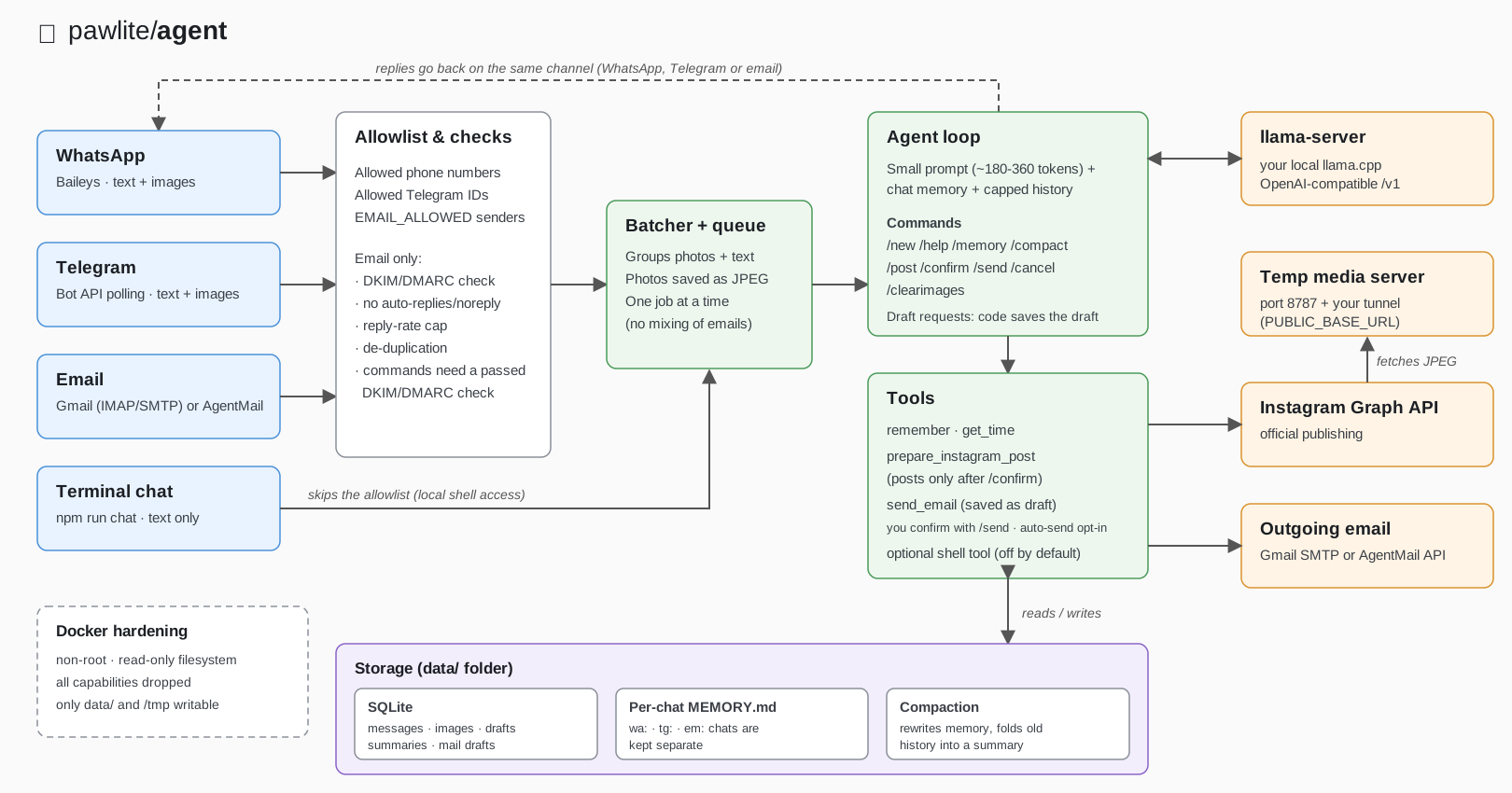
Why it’s small on purpose
By default each request sends only a ~180-360 tokens system prompt, the chat’s MEMORY.md, capped history, and a bunch tiny tools (150-700 tokens of definitions).
Compare that with the ~70K tokens an “agent platform” sends per turn: prefill on a local model drops from tens of
seconds to a second or two.
Setup
Requires Node 22+. You can get a recent version together with npm here.
npm install
cp .env.example .env        # then edit it
llama-server -m your-model.gguf -c 16384 -np 1 --jinja --port 8080
npm run chat                # test the LLM side without any chat app
npm start
It’s quick and easy to run your agent with npm, however following npm install you can also build (docker compose build --no-cache) and run Docker (recommended for security reasons) as docker compose up,docker compose logs -fto watch the logs,
docker compose down -d to run the container in a background as a daemon and docker compose down to stop the container running in the background. With docker your agent will run in isolation.
Note -np 1 matters: llama-server splits -c between parallel slots, and a request can reach 6 to 7K tokens, so each slot
needs at least 8192 or it will show “context overflow” errors. For example, with -c 16384 and -np 4, every request would get only 4096 tokens of context.
Set ALLOWED_NUMBERS (digits, country code), run npm start, scan the QR under
Settings → Linked Devices. (PAIRING_PHONE gives you a code instead of a QR. SELF_CHAT=true uses “Message yourself”.)
Telegram
- Talk to @BotFather →
/newbot→ put the token inTELEGRAM_BOT_TOKEN. - Put your numeric user ID in
ALLOWED_TELEGRAM_IDS. Not sure what it is? Start the bot with the list empty, message it, and read theIgnored Telegram message from user id …log line. - Set
WHATSAPP_ENABLED=falseif you only want Telegram.
Email (Gmail and/or AgentMail)
The agent polls the mailbox (default every 120 s), answers mail from addresses in EMAIL_ALLOWED, and replies in the
same thread, marking handled mail as read. It answers people who write to it only if their email is in the EMAIL_ALLOWED list; it doesn’t read your other personal emails or
send unprompted mail; it only sends when you ask for it in a chat (see Sending email). Image attachments work, so you can email photos to post on Instagram, then reply /confirm.
Gmail (or any IMAP/SMTP mailbox). Create a dedicated account, turn on 2-Step Verification. For Gmail follow the steps below:
- Generate a App Password
- Open Google Account Security.
- Enable 2-Step Verification, if it isn’t already enabled.
- Open Google App Passwords.
- Create a new App Password (for example, name it My TypeScript Application).
- Copy the generated 16-character password and use it to configure the app as described below.
Set IMAP_USER + IMAP_PASSWORD. The Gmail hosts are the defaults; for Fastmail or
your own domain, change IMAP_HOST / SMTP_HOST. If it can’t connect, check that IMAP is enabled for the account.
Workspace admins can block app passwords.
Forgery check: mail is ignored if the receiving server reports DKIM/DMARC failure (EMAIL_REQUIRE_AUTH=true). Commands
(/send, /confirm, …) and “send it” by email additionally need a passed DKIM/DMARC result: with Gmail/IMAP that is
normally the case, but AgentMail reports no result, so over AgentMail confirm from Telegram/WhatsApp (or set EMAIL_REQUIRE_AUTH=false,
which turns off both checks).
AgentMail. Create an inbox and an API key in the AgentMail console; set AGENTMAIL_API_KEY and
AGENTMAIL_INBOX_ID (the inbox address). Uses the REST API, no IMAP. AgentMail doesn’t expose a sender-verification
verdict this project relies on, so only EMAIL_ALLOWED protects you there. Use an obscure inbox address.
Note If you’re running the agent on your local machine, antivirus software may block nodejs from polling imap servers, like Gmail. If it happens, you’ll see an error, when starting the agent. In that scenario you can disable it for a specific domain, e.g. imap.gmail.com.
Both can run at once. Safeguards: allowlist, auto-reply/bulk/noreply senders skipped, quoted history stripped,
de-duplication (never answers the same message twice), and a per-sender reply cap to stop bot-to-bot loops.
Posting uses Meta’s official Content Publishing API. You need:
- An Instagram Professional account (Business or Creator).
- A Meta developer app with the Instagram product (“Instagram API with Instagram Login”) and an access token with the
instagram_business_content_publishpermission. Put the token inIG_ACCESS_TOKENand the account’s numeric Instagram ID inIG_USER_ID. (If your token comes from Facebook Login instead, setIG_GRAPH_HOST=https://graph.facebook.com; its permission is namedinstagram_content_publish.) Posting to your own account usually works while the app is in development mode; check Meta’s current rules. Long-lived tokens expire, so plan to refresh them. - A public HTTPS URL. Instagram downloads each image from a URL you provide, so it can’t read local files.
The agent runs a tiny media server on
HTTP_PORT(default 8787); expose it with a tunnel and setPUBLIC_BASE_URL:cloudflared tunnel --url http://localhost:8787 # prints https://something.trycloudflare.com(Quick tunnel URLs change on restart; use a named tunnel, ngrok, Tailscale Funnel or a reverse proxy for a stable one.) Only the images of the post being published are served, under random one-time tokens, and only while publishing. A static host such as GitHub Pages can’t do this job: the images are served on the fly.
IG_USER_ID, IG_ACCESS_TOKEN and PUBLIC_BASE_URL must all be set or posting stays disabled.
Commands
| Command | What it does |
|---|---|
/new |
Clears this chat’s history and summary. Keeps MEMORY.md. |
/help |
Lists the commands available with your current setup. |
/memory |
Shows what is saved in long-term memory. |
/compact |
Tidies memory and summarizes old messages now. |
/post <caption> |
Drafts an Instagram post from the photos you sent (skips the model). |
/confirm |
Publishes the Instagram draft. |
/send |
Sends the pending email draft (you can also just say “send it”). |
/cancel |
Discards the pending email draft and/or Instagram draft. |
/clearimages |
Deletes photos that haven’t been posted. |
Posting flow
- Send 1–10 photos (as photos or as image files). Quick successions are batched, so albums work.
- Say what you want: “post these to Instagram, caption about our hike”. The model writes a caption and creates a
draft. Or skip the model with
/post <your caption>. - The agent shows the exact draft. Reply
/confirmto publish or/cancelto discard. Nothing is published without/confirm, and/confirmis handled by code, not by the model, so a confused or manipulated model can’t post on its own.
Images are converted to what Instagram requires: sRGB JPEG, ≤1440px wide, under 8 MB, aspect ratio padded (white bars) into the allowed 4:5–1.91:1 range rather than cropped. Carousels (2–10 images) are cropped by Instagram to the first image’s ratio. Captions are limited to 2,200 characters and 30 hashtags; Instagram allows 100 API posts per 24 hours. Unposted images are deleted after 7 days.
Groups: in WhatsApp/Telegram groups the agent answers only when an allowed member mentions it (@PawLite / @your_bot),
and a photo needs that mention in its caption. For multi-image posts, use a direct chat.
Sending email
Works from any channel (WhatsApp, Telegram or email) once Gmail or AgentMail is configured.
- “Email bob@example.com that I’ll be late” → saves a draft and shows it. Reply
/sendto send it (or say “send it”; over email use/send),/cancelto discard. Drafts expire after an hour. The model can never send by itself. - “Draft an email to bob@example.com saying I’ll be late, subject Late” (or “… to Anna …“) → drafted by code: the model
only fills in recipient, subject and body (
src/draft-email.ts), and the code saves the draft, so the draft always exists when the preview is shown. With a name instead of an address, the address must be in the chat’s memory (say “Anna’s email is anna@example.com, remember it”) and still be inEMAIL_ALLOWED; the model may not invent one. If it can’t find an address, it says so and saves nothing. This path is used whileEMAIL_AUTO_SEND=false, for “draft/write/prepare/compose an email …”, “send an email to …” and “email <address> that …”. Questions, requests with photos, and “send the draft” are left alone. - Set
EMAIL_AUTO_SEND=trueto get the old behaviour back: “Email bob that I’ll be late” then sends right away. - “Send these photos to bob@example.com” → the photos you sent in this chat (up to 10, 20 MB total) go along as
attachments named
image-1.jpg,image-2.jpg, … They are full-frame copies, not the padded Instagram versions.
Sending needs your confirmation by default (EMAIL_AUTO_SEND=false), so a prompt injection hidden in pasted or forwarded
text cannot make the agent send mail. With EMAIL_AUTO_SEND=true, send or draft is decided by your words, not by the model.
Small models pick between tools unreliably, so the code reads your message (emailIntent in src/send-mail.ts): it sends by default, and drafts only if you say draft / write /
compose / prepare / preview, ask to see it first, or say “don’t send”. If you also say “send”, it sends. A bare “send it”
is handled by code too, so the model can’t invent a new email. After every send the agent appends the real result
(✅ Email sent to … or the error), so the model’s wording can’t mislead you.
Rules:
- Recipients must be in
EMAIL_ALLOWED, unless you setEMAIL_SEND_ANY=true. One recipient per email, body ≤ 5,000 characters. - It sends from Gmail if configured, otherwise AgentMail. If both are set,
EMAIL_SEND_VIA=imap|agentmailpicks one. EMAIL_MAX_PER_HOUR(default 20; a missing, empty or invalid value also gives 20) is applied twice, with separate counters: replies per sender, and new emails sent in total.- It cannot read or search your inbox, and it never sends without being asked.
Memory and compaction
Per chat, the agent keeps (1) conversation history in SQLite, (2) a long-term MEMORY.md the model writes with its
remember tool, and (3) a running summary of older messages. Compaction keeps (1) and (2) from growing forever.
Saving facts. The model is told to call remember proactively whenever you share a lasting fact (people, preferences,
routines, projects), without announcing it. Code backs this up: duplicate notes are skipped, and notes that look sensitive
(passwords, keys, tokens, long card-like numbers), or look like standing orders or links (“from now on…”, “always send…”, URLs), are
refused, because memory goes into every future prompt. Only what is in MEMORY.md survives /new: anything that
was only said in conversation is gone once history and summary are cleared.
When compaction runs: after every reply, the agent estimates the chat’s size in tokens (characters ÷ COMPACT_CHARS_PER_TOKEN,
default 4, so it is a rough estimate, not the model’s real tokenizer). If a limit is passed, it compacts that chat after
sending the reply. /compact runs it on demand, /memory shows what’s remembered. An optional timer
(COMPACT_INTERVAL_MINUTES, off by default) also sweeps all chats, e.g. after you hand-edit a MEMORY.md.
- Memory: above
COMPACT_MEMORY_TOKENS(default 1500), the model rewritesMEMORY.mdas a deduplicated bullet list. The rewrite is only accepted if it is a clean, shorter, non-trivial list, and the old file is saved asMEMORY.md.bak. - History: above
COMPACT_HISTORY_TOKENS(default 3500) of un-summarized messages, the oldest are folded into a summary (kept in the prompt) and only the newestCOMPACT_KEEP_MESSAGESstay verbatim. Original rows stay in the database but are no longer sent. - Compaction goes through the same one-at-a-time queue as chat, so it never overlaps a reply, but the next message waits if a compaction is still running (a few seconds to a minute on a local model).
- If an attempt doesn’t shrink a chat (model failure or a rejected rewrite), it isn’t retried until the content has grown another 20%, so a stubborn chat can’t slow every reply.
- A small local model can drop or distort facts when rewriting. That’s what the backup and the acceptance checks are for.
- Independently of compaction, every request is hard-capped (last 4,000 characters of memory,
HISTORY_CHARSof history, default 16,000), so the prompt can’t overflow even if compaction hasn’t run.
Config highlights
| Var | Meaning |
|---|---|
LLM_THINKING=false |
Sends enable_thinking=false (faster on thinking models like Gemma 4). |
LLM_TOOLS=false |
No tool definitions. Use /post <caption> instead. Good if your model’s tool calling is flaky. |
LLM_VISION=true |
Shows new images to the model (≤4, downscaled) so it can write captions. Needs a vision model and --mmproj. |
ENABLE_SHELL=true |
Gives the model a bash tool. Only inside Docker. |
EMAIL_ALLOWED |
Addresses the agent answers and may email. |
IMAP_ERROR_LOGGER |
Enables IMAP email error logging (set to true to debug email connectivity issues) |
EMAIL_SEND_ANY=true |
Lets it email addresses outside EMAIL_ALLOWED. Off by default. |
EMAIL_AUTO_SEND=true |
Lets the model send email without your /send. Off by default (safer against prompt injection). |
EMAIL_SEND_VIA |
imap or agentmail: which mailbox sends new mail when both are configured. |
EMAIL_MAX_PER_HOUR |
Hourly cap on replies per sender and, separately, on emails sent in total. Default 20. |
HISTORY_CHARS / COMPACT_* |
History cap (16000) and compaction limits (3500 history tokens, 1500 memory tokens). |
DATA_DIR |
Leave unset. Defaults to ./data natively; Docker sets it to the mounted /data itself. |
Project layout
| File | Role |
|---|---|
src/prompts.ts |
Everything the model reads: system prompt, tool descriptions, compaction prompts, /help text. Text only. |
src/agent.ts |
Commands and the tool loop. |
src/tools.ts |
Tool definitions (schemas) and the code that runs them. |
src/draft-email.ts |
“Draft an email to …”: the model fills in to/subject/body, code saves the draft (recipient must appear in the message or memory). |
src/send-mail.ts |
Email drafts, sending, the send-vs-draft rule (emailIntent), limits and recipient checks. |
src/mail-core.ts, email-imap.ts, email-agentmail.ts, email.ts |
Email channels (receive and send). |
src/inbound.ts, queue.ts |
Shared entry point: batching of photos/text, one job at a time. |
src/compact.ts |
Memory and history compaction. |
src/db.ts |
SQLite tables (messages, images, drafts, mail drafts, summaries, seen mail). |
src/post.ts, instagram.ts, media.ts |
Instagram drafts, publishing, image conversion. |
src/whatsapp.ts, telegram.ts |
Chat channels. |
src/llm.ts, config.ts, cleanup.ts, cli.ts, index.ts |
LLM client, settings, housekeeping, terminal chat (text only), startup. |
Rule of thumb: text the model reads goes in prompts.ts; rules the model must not be able to override (the email
send-vs-draft rule, the secret filter, rate limits, /confirm) stay in code.
Docker
docker compose up --build # scan the WhatsApp QR on first run
Terminal chat. npm run chat talks to the same agent as the chat channels: commands (/help, /new, /memory,
/compact, …), tools, MEMORY.md, drafts and compaction all work. It is text only (no images) and keeps its own
conversation under the chat id cli. It reads and writes the same ./data folder as the agent. While the agent runs in
Docker, open the terminal chat inside the container instead of on the host, so both use the database from the same
filesystem:
docker compose exec pawlite npx tsx src/cli.ts
The container runs hardened (docker-compose.yml): non-root user, read-only filesystem (only /data and a /tmp tmpfs are
writable), all Linux capabilities dropped, no-new-privileges, memory and process limits. If it fails to start or misbehaves,
disable read_only first, then mem_limit.
Data (auth, DB, memory, images) lives in ./data. Point your tunnel at http://localhost:8787. Run either Docker or
npm start at a time: they share ./data, and WhatsApp allows only one active session.
Troubleshooting
- “Cannot reach the LLM server” / “fetch failed”. Check llama-server is running on the port in
LLM_BASE_URL. In Docker it must listen on0.0.0.0(--host 0.0.0.0) so the container can reach the host. - “Context overflow”. Start llama-server with
-c 16384 -np 1(see Setup). unable to verify the first certificateon email (or other HTTPS calls). Usually antivirus or a proxy that scans HTTPS (Avast shows up as “Avast trusted CA”) re-signing traffic with its own certificate. Node doesn’t use your system’s trust store by default. Fixes: excludeimap.gmail.comandsmtp.gmail.com(and other hosts you hit) from the antivirus’s HTTPS/mail scanning; natively,NODE_USE_SYSTEM_CA=1(Node 22.15+) can make Node trust the system store; in Docker, the container can’t see your Mac’s keychain, so use the exclusion or add the certificate withNODE_EXTRA_CA_CERTS. Don’t disable certificate checking: your mailbox password passes through it.- The agent says it drafted or sent an email but nothing happened. The log (
docker compose logs) shows each tool call as[tools] <chat>: <tool> -> <result>, each code-made draft as[draft] <chat>: saved|refused|failed, and[tools] <chat>: no tool was called for: …when the model answered an email-related request without calling any tool (it only claimed to act). A real draft always shows a✉️ Draft email…block written by the code, and a real send always ends with✅ Email sent to …; if you don’t see those, nothing was saved or sent. - Docker build fails in
better-sqlite3with “Python is not set”. npm couldn’t download a prebuilt binary and fell back to compiling. Retry on a stable connection, or addpython3 make g++to the image beforenpm ci. npm warn deprecated prebuild-installis harmless; it comes frombetter-sqlite3.mkdirerror onDATA_DIR. RemoveDATA_DIRfrom.env(a value like/dataonly exists inside the container).- The agent forgot things after
/new./newkeepsMEMORY.mdonly. Check/memory; if the facts aren’t there they were never saved. If you moved the project folder, move itsdata/folder too.
Extending
- New tool: add the model-facing text to
src/prompts.ts, a definition insrc/tools.ts:toolDefs()and acaseinrunTool(). - Change what the model is told: edit
src/prompts.ts. - Another channel: write an adapter that calls
receive(chatId, text, images, { send })fromsrc/inbound.ts. - Other Instagram formats (Reels, Stories): extend
src/instagram.ts; the API supports them, this project doesn’t yet.
Caveats (read these)
- Baileys is an unofficial WhatsApp Web client. Automated use can get a number restricted or banned; use a spare number if you care.
Keep it updated (older releases had a message-spoofing vulnerability; this project pins
7.0.0-rc14). - Telegram bot chats are not end-to-end encrypted.
- Anyone on the allowlists can talk to your model, publish to your Instagram with
/confirm, and make it send email to the addresses inEMAIL_ALLOWED. WithEMAIL_SEND_ANY=truethat means any address. Keep the lists tight. - Prompt injection. Text you paste or forward can contain instructions aimed at the model. The system prompt tells it to treat
such text as data, and code refuses to save instruction-like or link-like notes to memory, but a model can still be talked into
things. The real protections are in code: email needs your
/send, Instagram needs/confirm, recipients must be inEMAIL_ALLOWED. Check/memorynow and then. - Not production-hardened: images and text only (no video/Reels), no encryption of
./data. - Agentmail and Instagram support not fully tested yet. Using defensive parsing for Agentmail.
- better-sqlite3 package might give you a warning about a no-longer-supported dependency installed. It comes pre-packaged, you can ignore it and hopefully there will be a new release soon.
- Next release will focus on refactoring and improving what is already there. Follow the PawLite GitHub Repository for further updates.
License & Author
Distributed under MIT license.
pawlite developed by Yuki Ichinoseki